Work-in-progress tracking software
Know where the work stands.
See which job is at which station, what is waiting, and where work has stopped. Keep the production view connected to the activity on the floor.
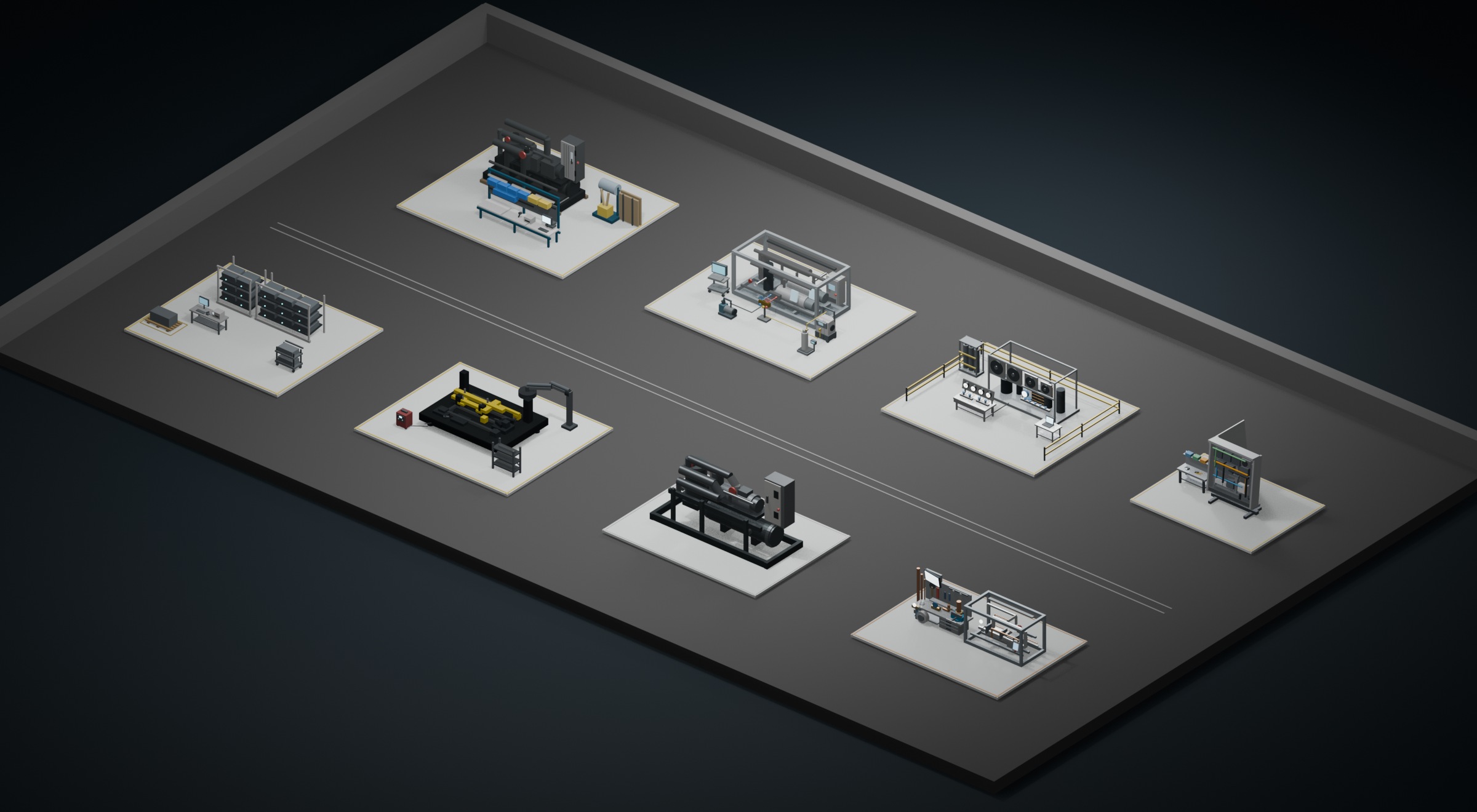
Find the job
Connect each work order to its current station and production state.
Find the delay
See queues, blocked work, and the handoffs that need attention.
Keep the view current
Combine camera observations with operator updates and issue reports.
01 / WIP Tracking
Why work in progress becomes hard to see
Work in progress, or WIP, is work that has started but has not finished its production route. A spreadsheet may list the job, while a cart, traveler, or operator holds the most current information about its location. The gap becomes visible when somebody asks for a delivery update or a station runs out of work.
Useful WIP tracking connects a job identifier, a route, a station, and a state. It should distinguish a job that is running from one that is queued, blocked, complete at a station, or waiting for the next handoff. A single percentage-complete number cannot explain those differences.
02 / WIP Tracking
Track movement and capture the reason work stops
Seneca shows work moving through manufacturing stations and connects that view to camera activity and operator inputs. An operator can report an issue at the job or station, giving the supervisor a place to start investigating.
The important question is not simply whether a job moved. Teams need to know whether it is ready for the next operation and what prevents it from moving. Connect a reported issue to its work order, station, time, and owner so the production view leads to an action.
03 / WIP Tracking
Use WIP visibility to improve flow
Compare the work waiting before a station with the work available after it. A growing queue can reveal a constraint, while an empty downstream station can indicate a delayed handoff or missing material. Review repeated patterns across representative jobs before changing the line.
Start with one route and define the transitions clearly. Test unusual paths such as rework, split jobs, shared carts, and returns to an earlier station. Keep a way for an operator or supervisor to correct a status when the record and the floor disagree.
Questions
Before you start.
What does WIP mean?
WIP means work in progress, also called work in process: jobs, parts, or assemblies that have started production but have not completed their route.
Is WIP tracking the same as scheduling?
WIP tracking shows the current state of work. Scheduling decides what should run next. Current WIP information gives scheduling and load-balancing decisions better context.
Can we track work without asking operators for every update?
Camera events can automate defined, observable transitions. Operator inputs remain useful for exceptions, checks, and context that cameras cannot reliably capture.
See Seneca at work
Bring us one job.
Start there.
Show us the procedure, training need, or production workflow you want to improve.